
Welcome to Part 2 of the blog series, where we dive deeper into the technical setup of the lockbox solution in SAP. If you haven’t already, be sure to check out SAP Lockbox Solution Part 1: Introduction, where we covered the high-level business use cases of the Lockbox solution.
Lockbox Configuration in SAP
The Lockbox configuration in SAP is straightforward and follows this SPRO path (Financial Accounting > Bank Accounting > Business Transactions > Payment Transactions > Lockbox)

OBAY: Define Control Parameters
The [OBAY] transaction allows you to configure Lockbox control parameters. Below are key settings and the functions within BAI2 format (the most commonly used format in the US):
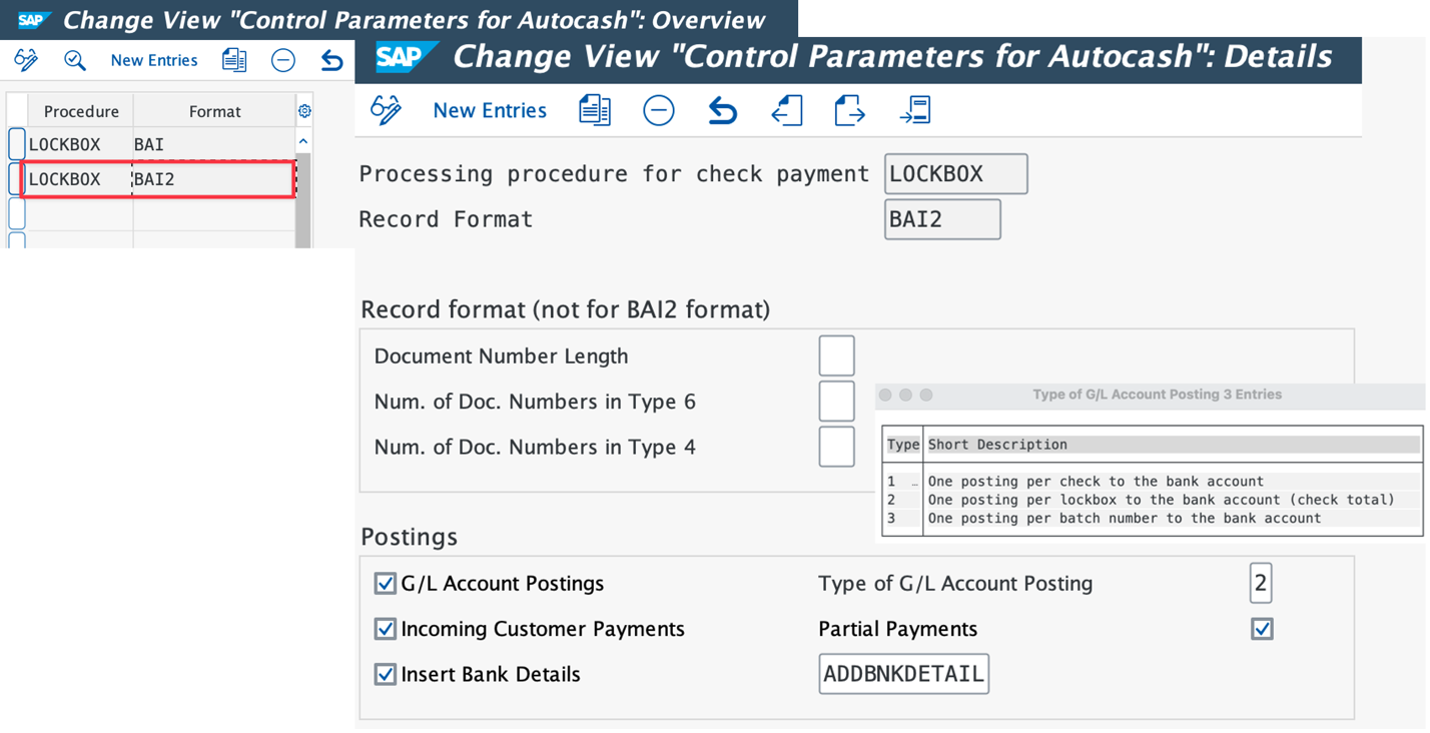
- G/L Account Postings
- Select this field if you want the system to generate G/L account postings (debit bank, credit cash receipt account).
- Type of G/L Account Posting
- 1 One posting per check to the bank account
- 2 One posting per lockbox to the bank account (check total)
- 3 One posting per batch number to the bank account
- Incoming Customer Payments:
- Select this field if you want the system to execute incoming payments postings to customer accounts.
- Partial Payments
- Select the partial payments checkbox ensures that insufficient payments are posted as partial payment rather than residual item
- Insert Bank Details
- To create a batch input session to insert new bank details by changing the customer master record, you must enter X here.
OBAX: Define Posting Data

The [OBAX] transaction is used to configure posting details. Here, you populate the necessary details such as the Company Code, Bank GL Account, Bank Clearing Account (AR), and the needed posting parameters.
Lockbox Sample File
After configuring the lockbox, it’s important to ensure that the incoming file adheres to the required structure. In the US, the most used lockbox file structure BAI2 consists of the following records:
- Record 1: FLB01 – Header Record
- Record 2: FLB02 – Service Record* (optional)
- Record 5: FLB05 – Detail Header Record
- Record 6: FLB26 – Detail Record (New Check: MICR Data)
- Record 4: FLB24 – Overflow Record (Contain Invoice Number)
- Record 7: FLB07 – Batch Total Record
- Record 8: FLB08 – Lockbox Total Record
- Record 9: FLB09 – Trailer Records
Please refer to the following SAP help link for details of the structure and sample file.

Lockbox posting in SAP GUI
FLB2 – Upload Lockbox File
The [FLB2] transaction is used to upload Lockbox file in SAP. The screenshot below illustrates this process.

Execute the program to upload the file. You will see that a total of $900 was uploaded, consisting of:
- Check #510000 – $150
- Check #510001 – $750
The uploaded records have a status of “Unprocessed.”

Click on the back arrow, you will find additional system messages explaining the reason for the unprocessed status, such as:
- “No Customer with MICR number”
- “Document not found”

FLB1 – Lockbox Postprocessing
The [FLB1] transaction is used for Lockbox post-processing in SAP. The screenshot below shows the red error button next to the check number, which indicates issues requiring attention.
Click on the “Other Display” to see processed checks in a grid table view.


Error Example:
- In this case, neither the customer number nor the invoice number were identified in the system.
- As a result, Posting Area 1 (G/L) was posted successfully, but Posting Area 2 (A/R subledger account clearing) failed.
The checks are marked as “unprocessed” with an automatically generated payment advice. This note serves as a placeholder until the proper identification is made and the payment can be allocated to the correct invoice.
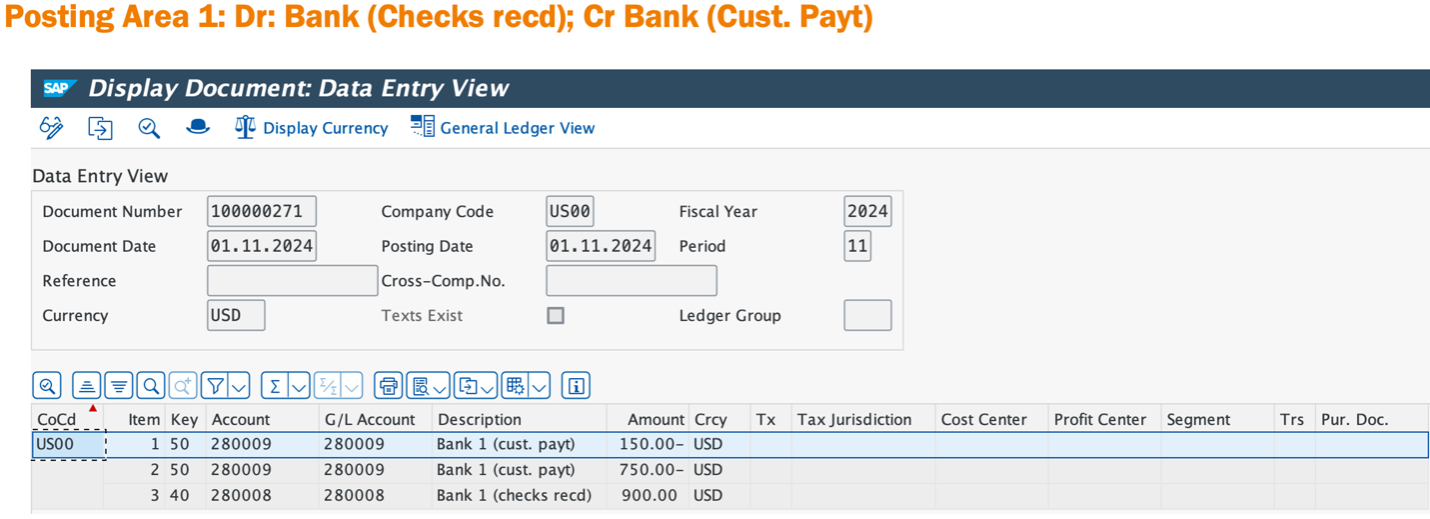

To correct the error on the screen above: click on Checks – Post tab to navigate to the screen for “post with customer clearing” as shown on the right screen. From there, you can assign the customer number and invoice number as you would normally do for any clearing with a customer.
Below is a table that outlines the different check posting statuses and the corresponding post-processing steps:
| Status | Description | Post-Processing |
|---|---|---|
| Applied | All the payments were applied | N/A |
| Partially Applied | Only a portion of payments were applied | Click on “Check” – “Post” to reallocate the unapplied payments |
| Unprocessed | No payments were applied | Click on “Check” – “Post” to identify customer and apply the payments |
| Post on Accounts | Payments were posted on customer account but failed to clear the open invoices | Click on “Check” – “Post” to either write off the differences or make partial payments |
Summary
- OBAX and OBAY are the main transactions for setting up the Lockbox solution in SAP.
- Use FLB2 to upload lockbox file and FLB1 to postprocessing if needed.


